

You want to work on a project with your team, but you don’t want to step on each other’s toes. No worries! There’s a way to work on your project in parallel without interfering with each other’s work, and then recombine it all together when you’re done. It’s called branching and merging.Documentation Index
Fetch the complete documentation index at: https://docs.diversion.dev/llms.txt
Use this file to discover all available pages before exploring further.
Branching
You can think of a branch as a separate version of your project. When you create a branch, you’re creating a copy of your project at that point in time.Creating a new branch
In the Desktop App: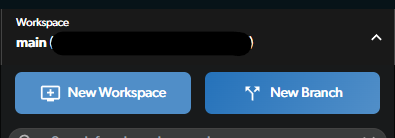
Choose a branch name
Give your branch a name that describes what you’re working on.
Also, pay attention to the commit you’re branching from - this will be the base for our new branch.
You can automatically switch to the new branch after creating it by leaving the checkbox checked, it’s checked by default.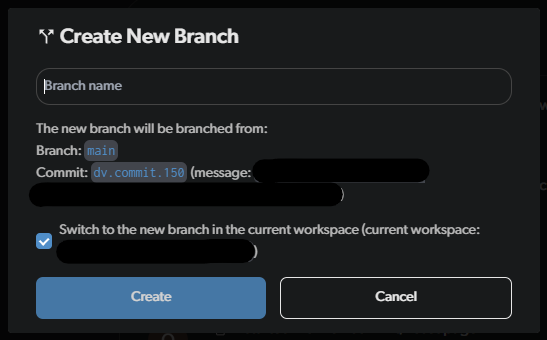
Switching branches
In the Desktop App, the branch dropdown in the header shows your current branch. Click it to see all branches in the repository. Clicking on another branch lets you view it in read-only mode without switching. To switch, click the menu for the branch you want and select “Switch to branch”.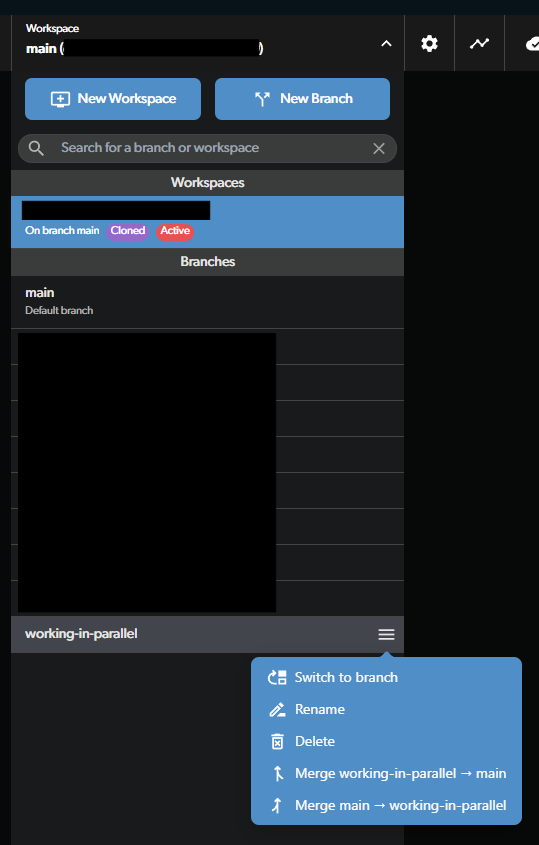
Branch graph
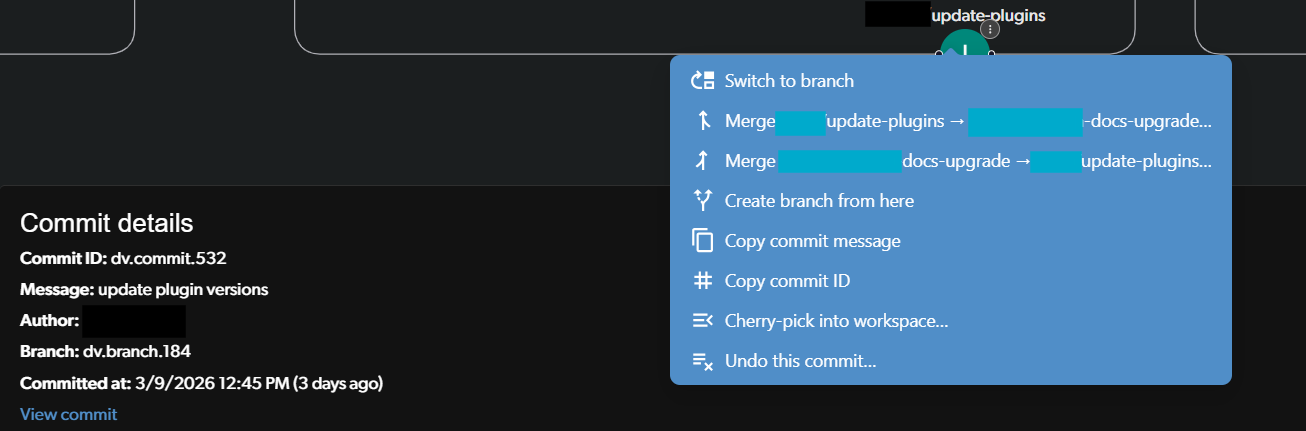
You can see a visual graph of all your branches and commits in the Desktop App.
Navigate the graph
The graph shows an interactive visualization of all branches and commits. You can pan and zoom to navigate around the graph.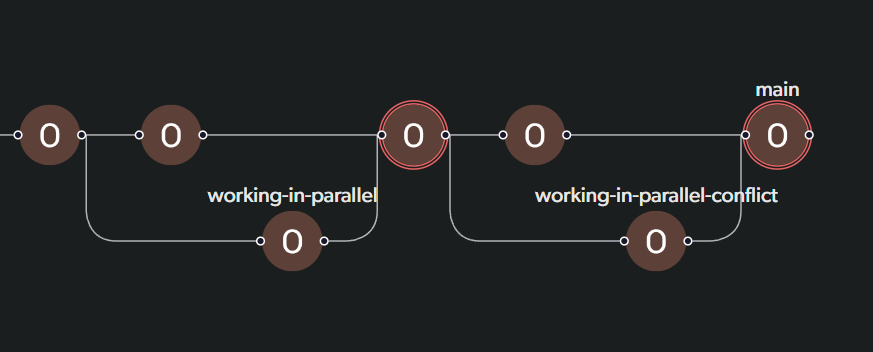
Important things to remember
- Working on any branch is just like working on your main branch. Making changes, committing, syncing - it’s all the same.
- Branches are visible to anyone in your repo, and anyone can switch to any branch.
- The committed changes on the branch are only available to team members who are on the same branch.
- There is no need to pull or fetch. When a teammate commits to a branch you’re on, your workspace is updated automatically. See syncing for more details on how auto-update works and how to control it.
Managing branches
Delete a branch
If you no longer need a branch, you can delete it. Note that you cannot delete the default branch. In the Desktop App, in the branch list, right-click (or click the menu icon) on the branch you want to delete and select “Delete”.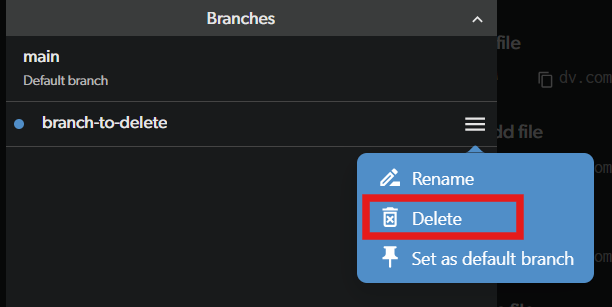
Rename a branch
You can rename a branch from the Desktop App. This is not supported for repositories synced with Git. In the branch list, right-click (or click the menu icon) on the branch you want to rename and select “Rename”. Type the new name and click “Rename”. Via the CLI, see the branch command for renaming branches.Set the default branch
The default branch is the branch that new workspaces are based on when they are created. Only admins can change the default branch, and this option is only available in the Desktop App. In the branch list, right-click (or click the menu icon) on the branch you want to set as default and select “Set as default branch”. This option is only visible if you are an admin of the repository. There is no CLI equivalent for this action.Merging
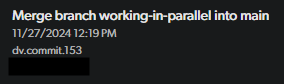
When you’re done working on your branch, you can merge it back into your main branch. Merging takes all of the changes from one branch and applies them to another.How to merge
In the Desktop App, go to the workspace view, choose the branch you want to merge, and select the merge option from the menu.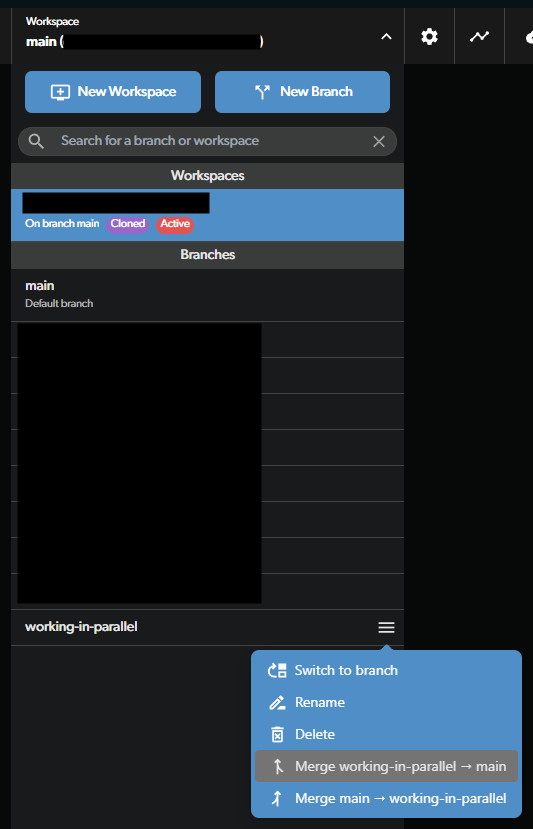
Merge conflicts
Sometimes, the changes you made on your branch conflict with the changes someone else made on another branch. When you try to merge these branches together, you’ll have to decide how to handle these conflicting changes. In the Desktop App, if you have conflicting changes and follow the steps in How to merge, you’ll see a screen that shows you the conflicting files instead of the successful merge commit.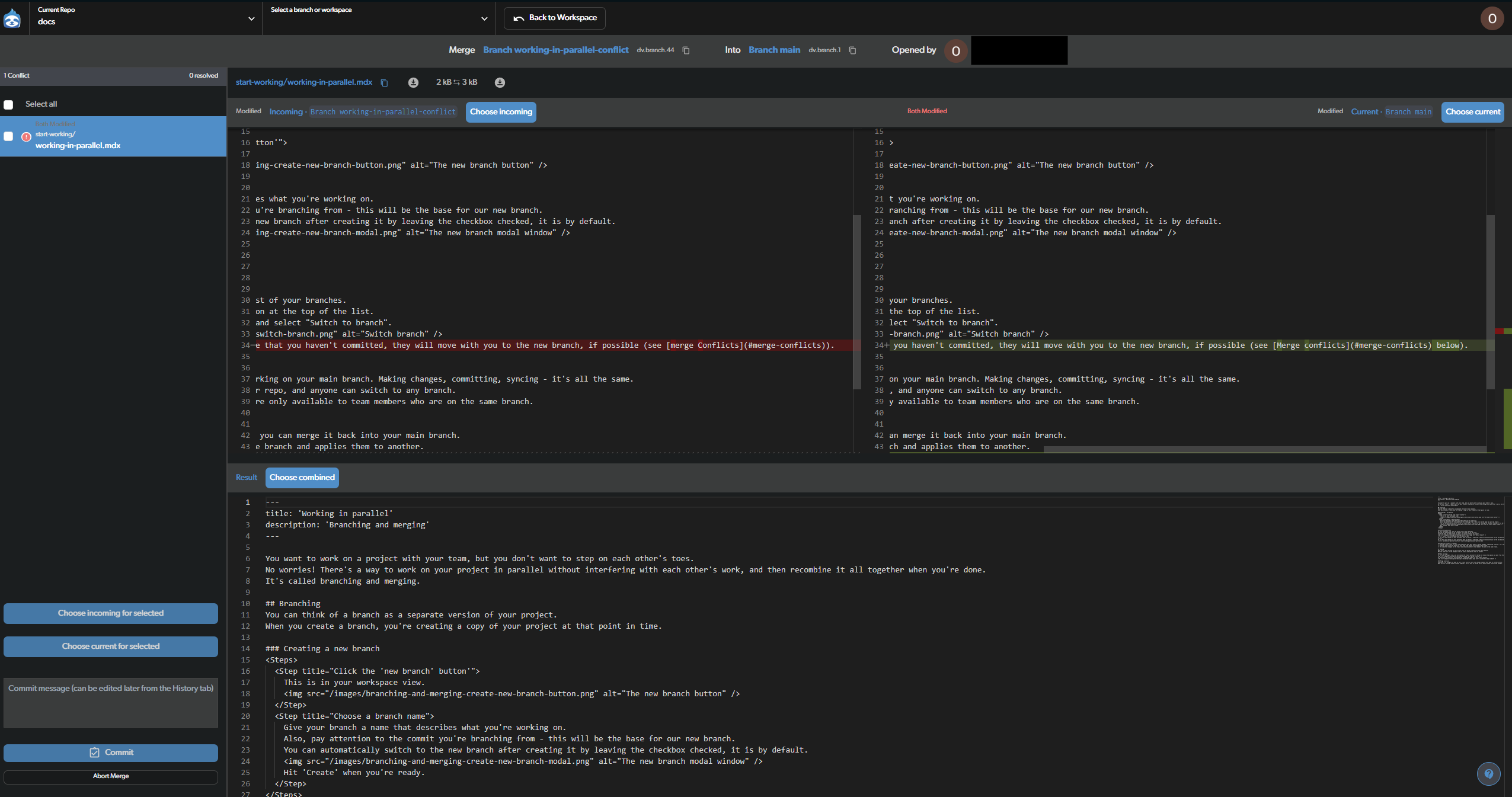
- A list of files with conflicting changes.
- For each file on the list:
- The incoming file. This is a readonly version of the file that’s on the branch you’re trying to merge from.
- The current file. This is a readonly version of the file that’s on the branch you’re trying to merge into.
- The outcome file. This is what the file will look like after you resolve the conflict. This is editable.
Merging non-text files
Non-text files, like images, 3d models, spritesheets, animations, etc., can’t be merged. This merge process works because text files are human-readable and can be compared line by line. If you have a merge conflict with a non-text file you have 2 options:- If you have a specific tool that can merge these files, you can use it to resolve the conflict. One example is Unreal Engine’s built-in merge tool which you can use if you have our plugin.
- Choose one version to keep and discard the other.
Merge conflict warning
Diversion has a feature that warns you about files that are being edited by other team members, and might cause a merge conflict. If you see the merge warning icon on a file, you can click on it and get info about who’s editing the file. Be sure to communicate before working on it to prevent merge conflicts. As mentioned above, this is crucial when working on non-text files.