

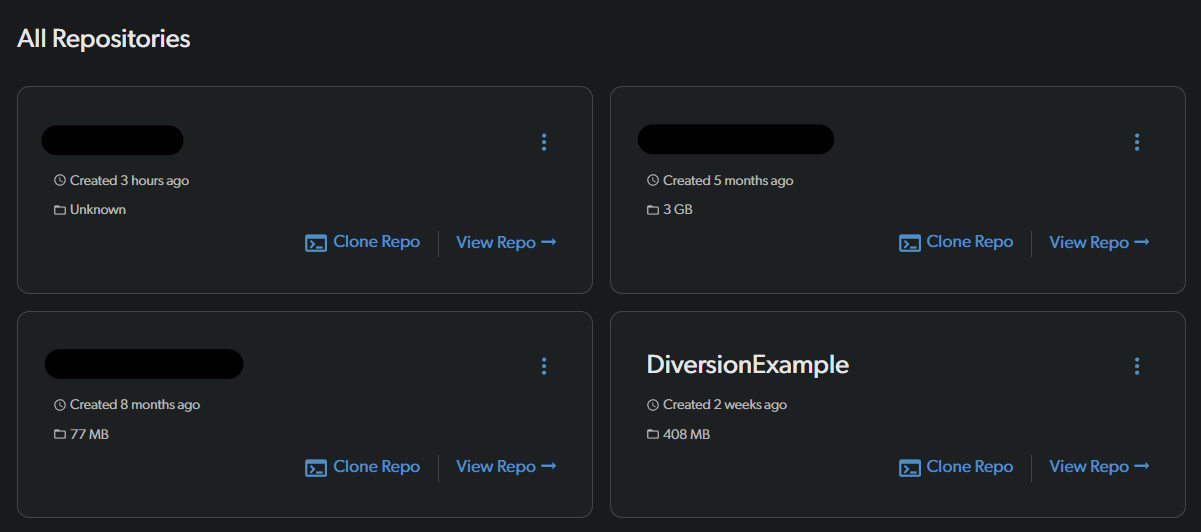
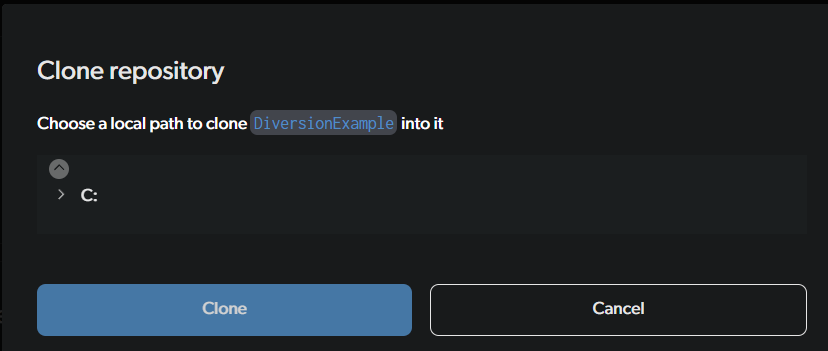
A team member has set up Diversion for your project and invited you to join, or maybe you want to get your own project that you created on another computer. Let’s get you set up:Documentation Index
Fetch the complete documentation index at: https://docs.diversion.dev/llms.txt
Use this file to discover all available pages before exploring further.
The project should start downloading right away. When it’s done, you can open it and start working!
File operations
Diversion gives you quick access to common file operations right from the workspace view. Right-click any file to see the available actions, or use the file title bar when viewing a file.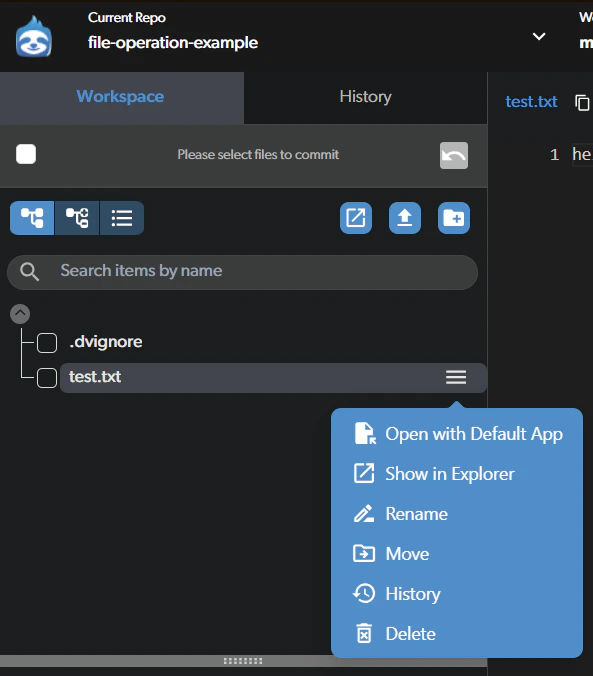
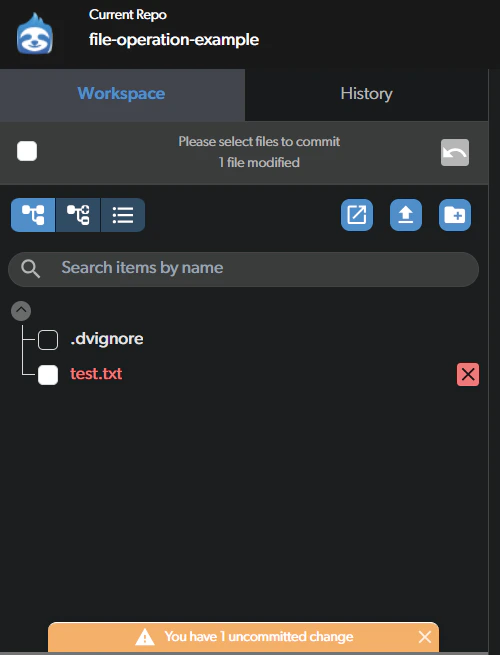
Delete a file
Right-click the file
In the workspace view, right-click on the file you want to delete and select Delete.
Rename a file
Right-click the file
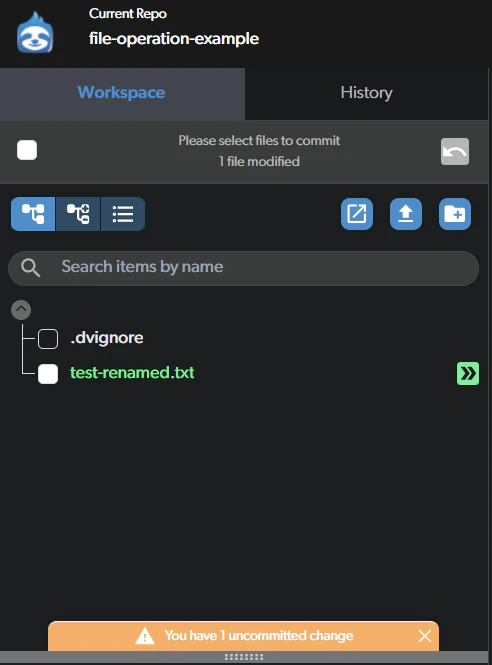
In the workspace view, right-click on the file you want to rename and select Rename.
Enter the new name
A dialog appears with the current file name pre-filled. Type the new name for your file.
File names cannot contain any of these characters:
< > : " / \ | ? *
Move a file
Right-click the file
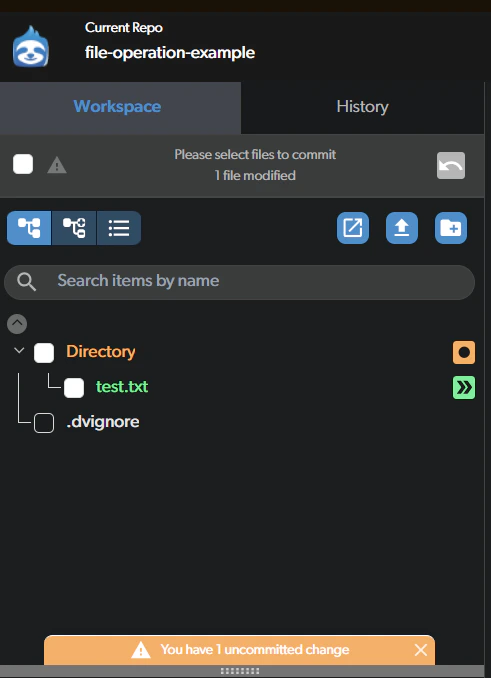
In the workspace view, right-click on the file you want to move and select Move.
Pick the target folder
A directory picker dialog opens. Browse to the folder where you want to move the file.
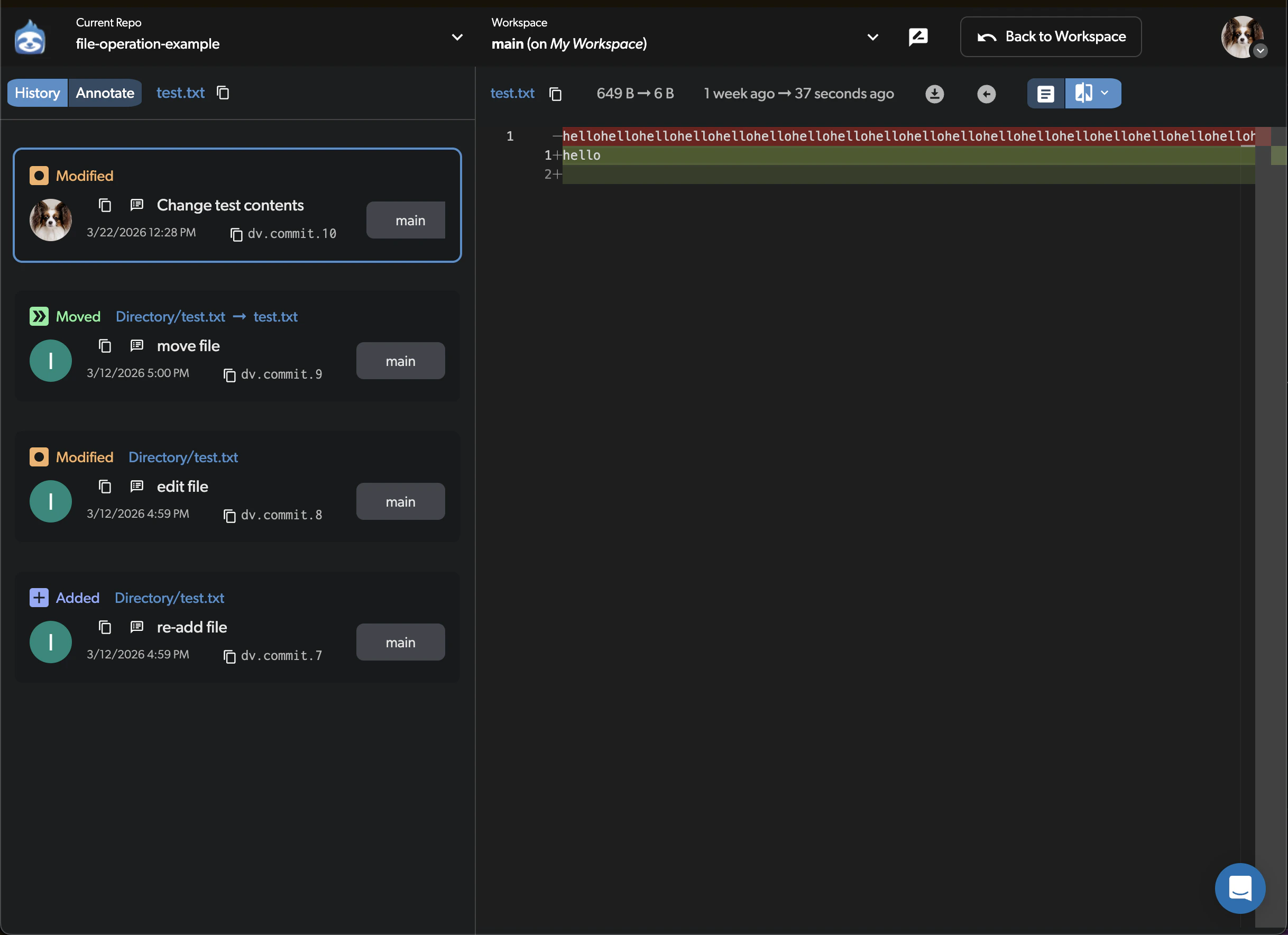
View file history
Restore a previous version
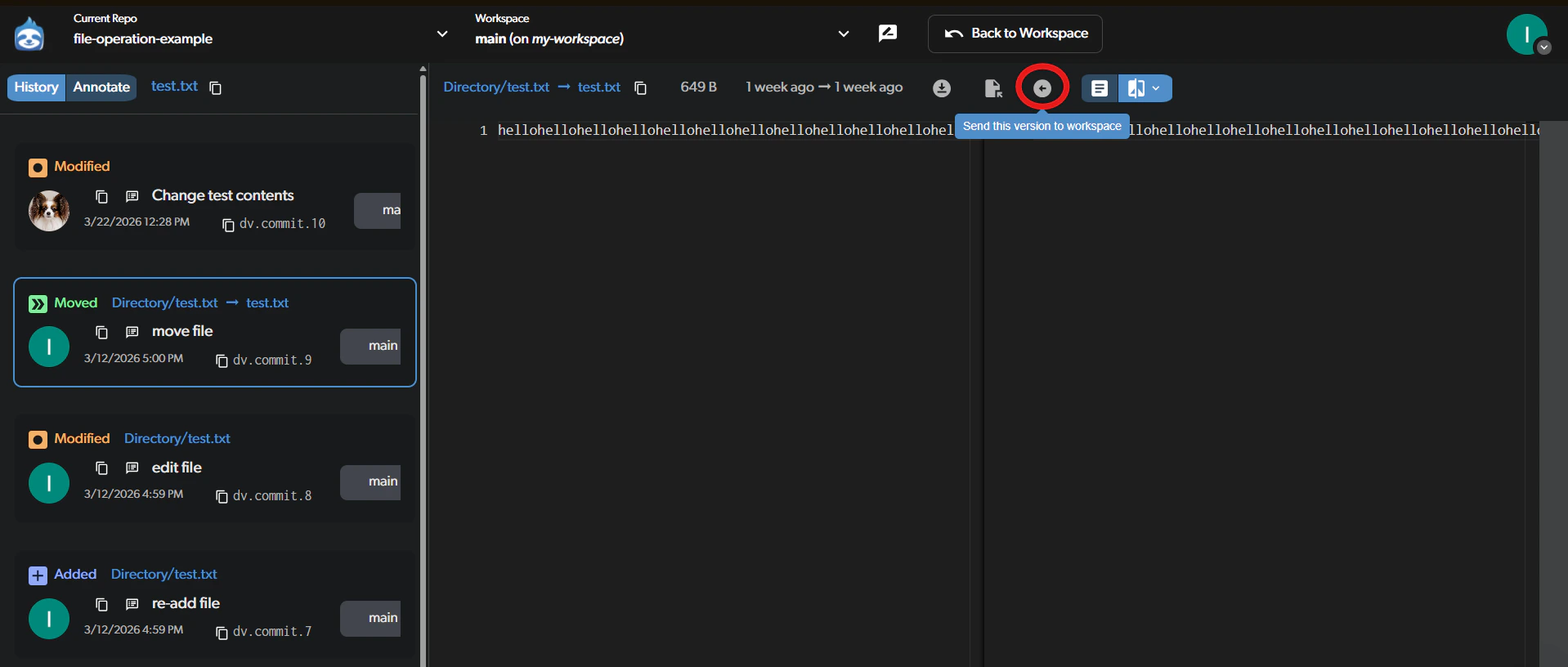
When viewing a file at a specific commit, you can send that version to your workspace. This replaces the current file contents with the selected version, and the change appears in your pending changes.Navigate to the file at a specific commit
You can get there in two ways:
- From the file history: right-click a file, select History, then click on the commit you want.
- From the branch history: open a commit, then click on the file you want to restore.
Annotate (blame)
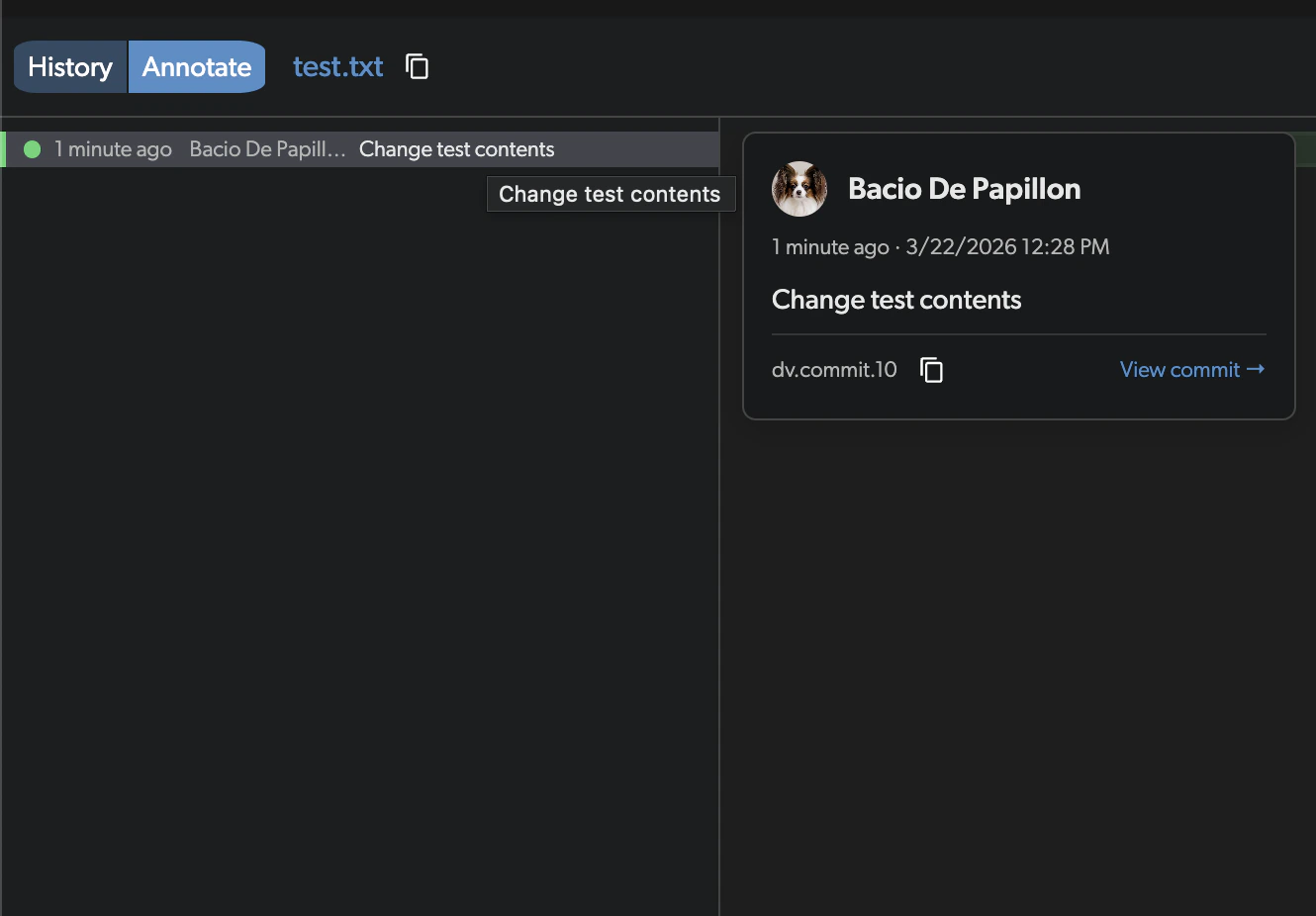
The Annotate view shows who last modified each line of a file, along with the commit message and date. This is useful for understanding how a file evolved and who is responsible for specific changes.Annotate is only available for text files. Binary files are not supported.
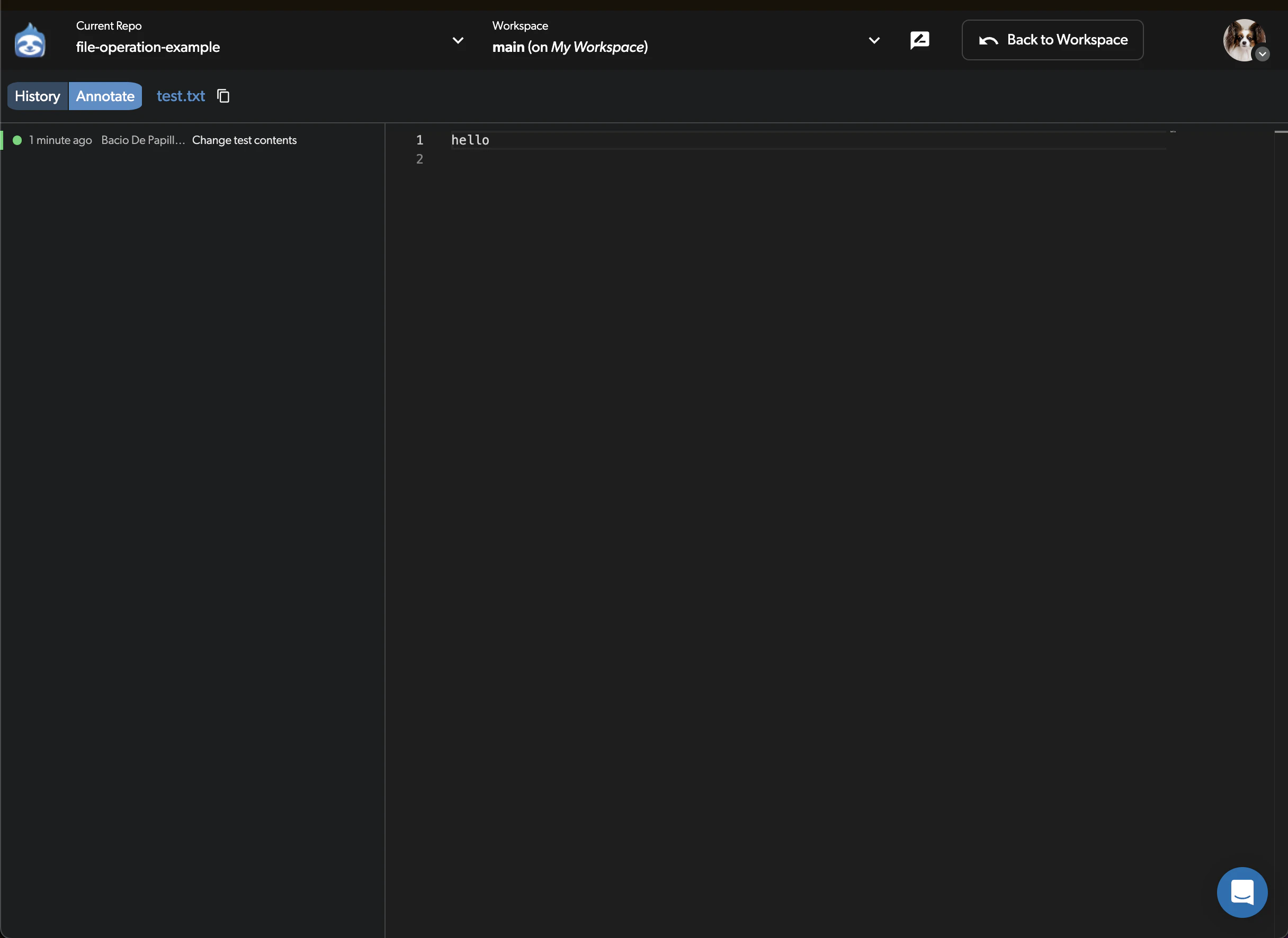
Browse line-by-line attribution
The left panel shows a color-coded dot, how long ago the change was made, the author name, and the commit message for each line range. The right panel shows the file contents with line numbers.
Download a file
When you click on a file in the workspace or commit view, a download icon button appears in the file title bar. Click it to download the file to your computer.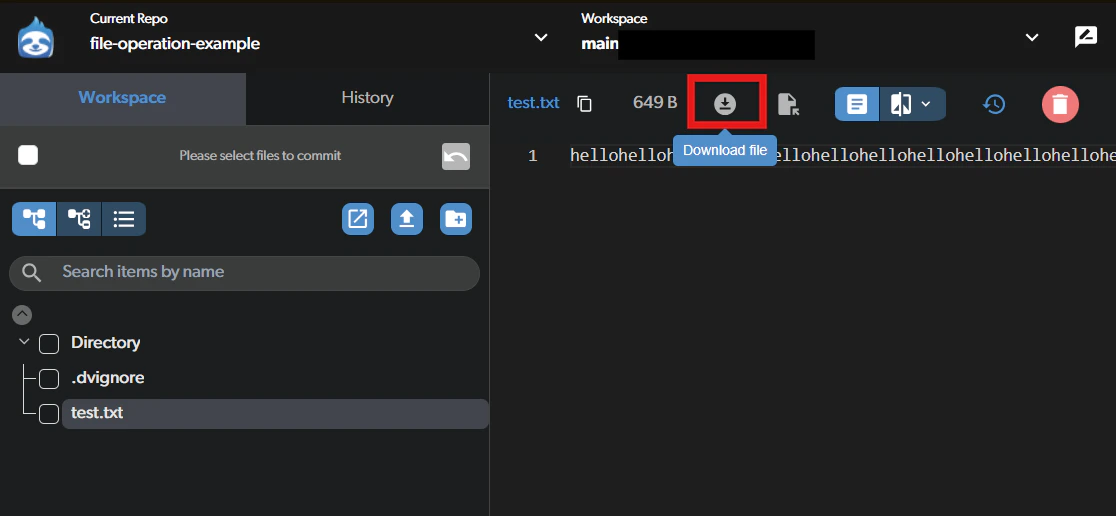
Open in Explorer (Desktop only)
Right-click a file in the workspace view and select Show in Explorer (Windows) or Reveal in Finder (macOS) to open the containing folder in your system file explorer.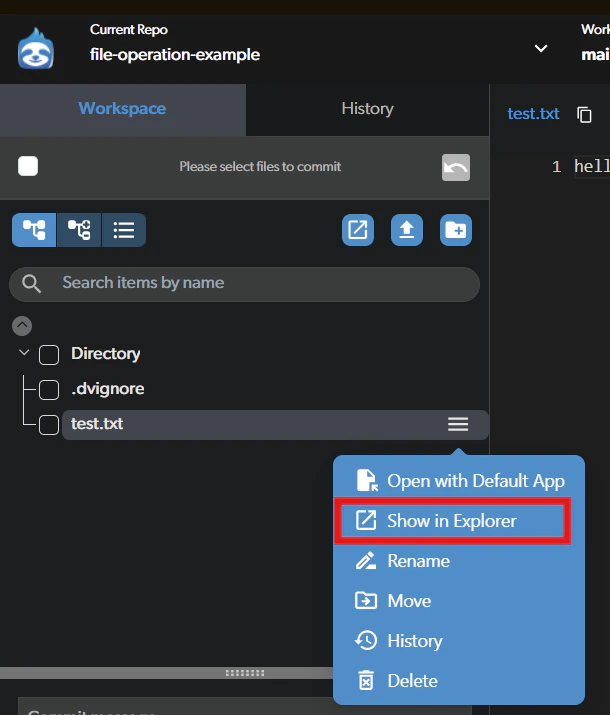
This option is only available for locally cloned workspaces. Make sure the Diversion agent is running.
.uproject file and open it from there.
Open with default app (Desktop only)
When viewing a file, click the Open with default app icon in the file title bar to open the file with whatever application your OS associates with that file type.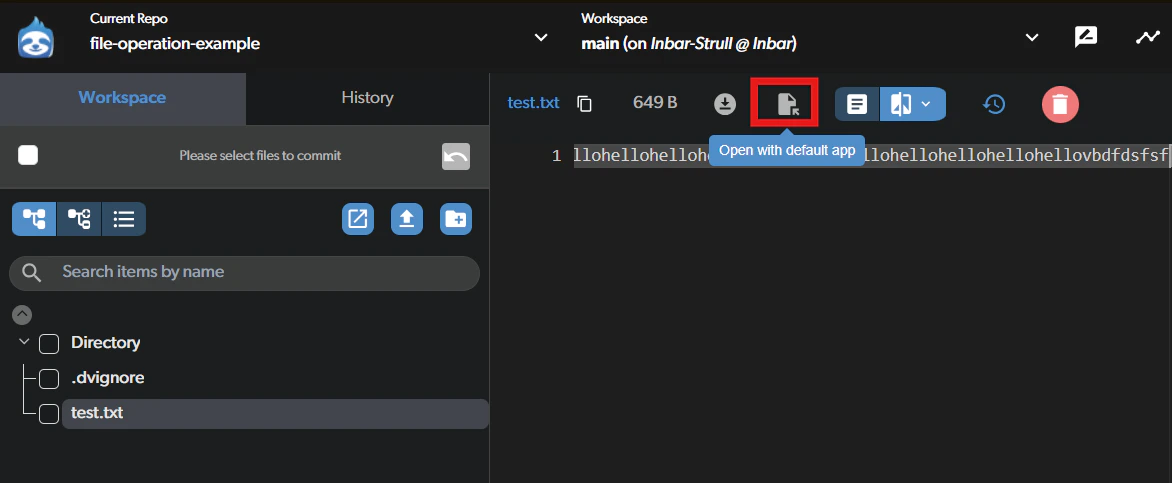
This option is only available for locally cloned workspaces. Make sure the Diversion agent is running.
.uproject file will launch it in Unreal Engine. Keep in mind that you may need to have previously opened the project with the correct engine version for this to work as expected.