
Documentation Index
Fetch the complete documentation index at: https://docs.diversion.dev/llms.txt
Use this file to discover all available pages before exploring further.
Renaming a repository
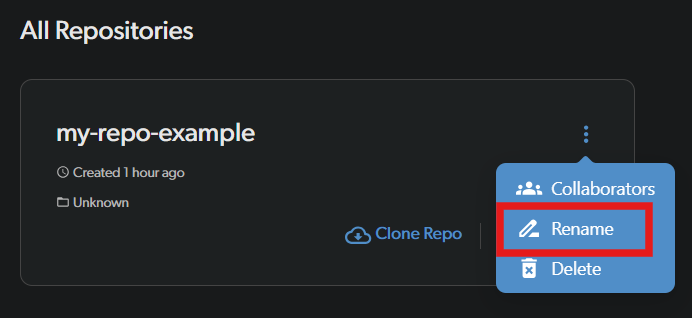
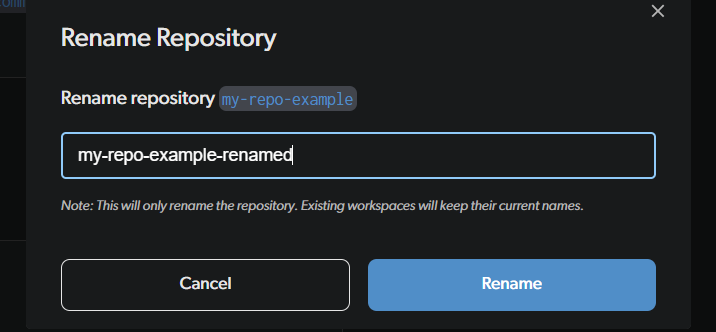
Only the repository owner can rename a repository.Find the repo on the dashboard
Go to the All Repositories view on the dashboard (not from a local workspace). Locate the repository you want to rename.
Deleting a repository
Find the repo on the dashboard
Go to the All Repositories view on the dashboard (not from a local workspace). Locate the repository you want to delete.
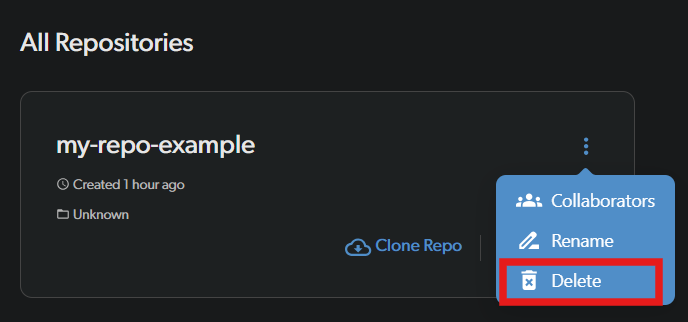
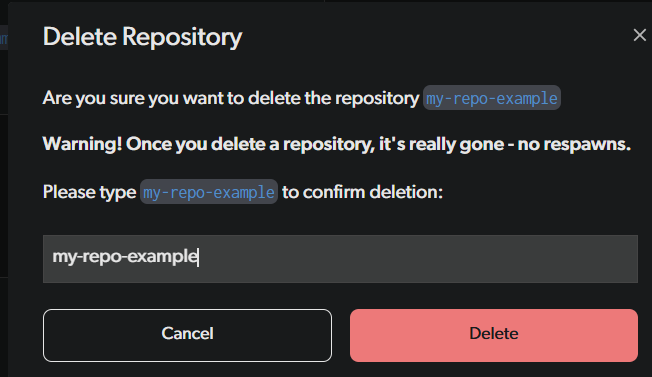
dv repo -d <repo-name>. See the repo command for details.
Viewing workspaces
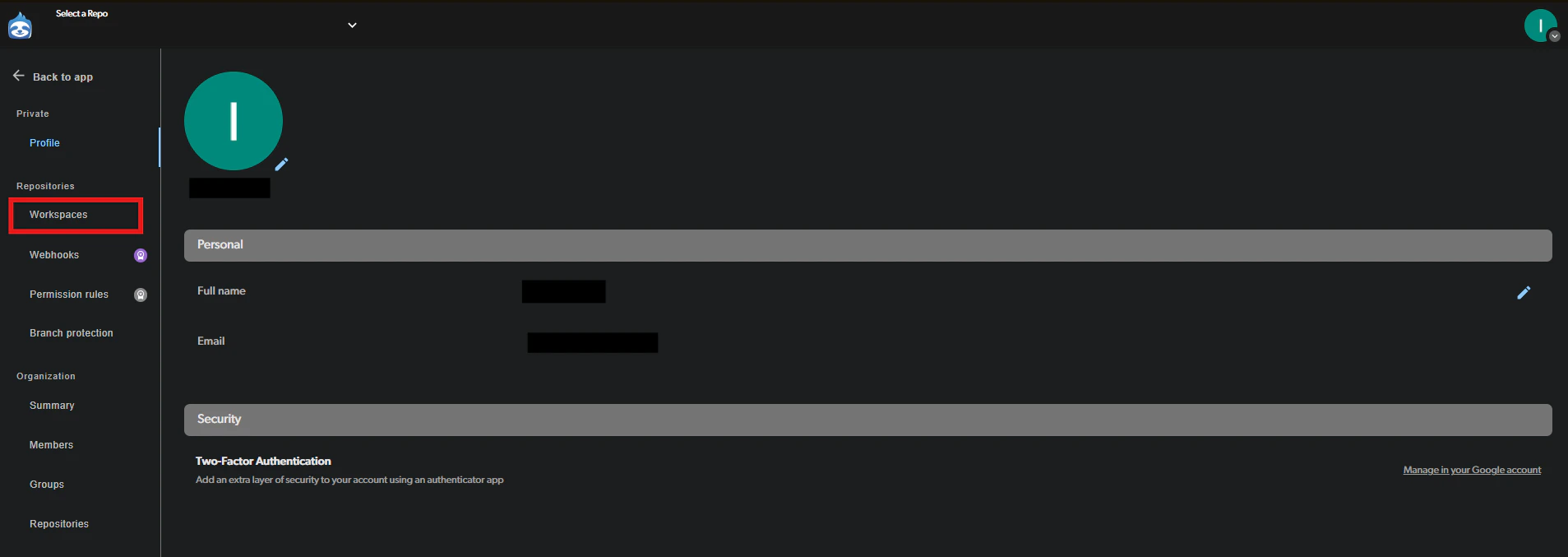
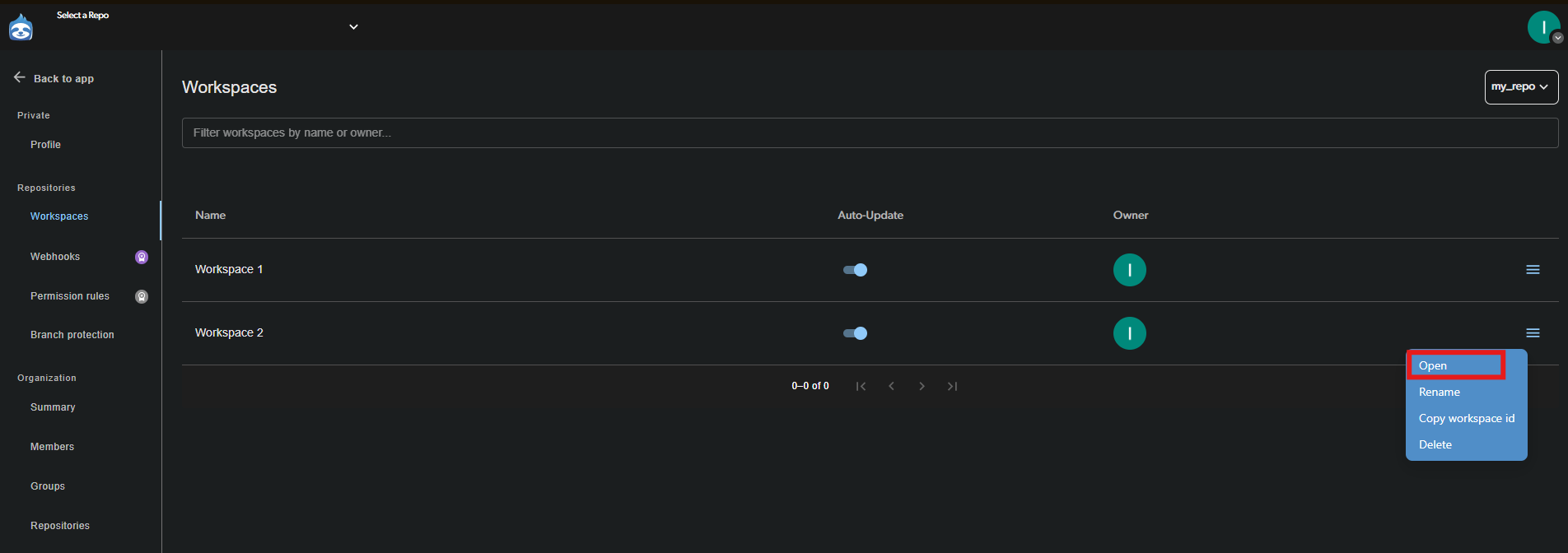
If you are an owner or admin of a repository, you can view and manage all workspaces in that repository, including those belonging to other collaborators. This is useful for debugging issues or managing changes on behalf of a team member.Go to Workspaces
In the left sidebar under Repositories, click Workspaces. If you are an owner or admin of multiple repositories, use the repository selector dropdown to pick the repository you want to inspect.